[fusion_builder_container type="flex" hundred_percent="no" hundred_percent_height="no" min_height="" hundred_percent_height_scroll="no" align_content="stretch" flex_align_items="flex-start" flex_justify_content="flex-start" flex_column_spacing="" hundred_percent_height_center_content="yes" equal_height_columns="no" container_tag="div" menu_anchor="" hide_on_mobile="small-visibility,medium-visibility,large-visibility" status="published" publish_date="" class="" id="" link_color="" link_hover_color="" border_sizes="" border_sizes_top="" border_sizes_right="" border_sizes_bottom="" border_sizes_left="" border_color="" border_style="solid" spacing_medium="" margin_top_medium="" margin_bottom_medium="" spacing_small="" margin_top_small="" margin_bottom_small="" margin_top="" margin_bottom="" padding_dimensions_medium="" padding_top_medium="" padding_right_medium="" padding_bottom_medium="" padding_left_medium="" padding_dimensions_small="" padding_top_small="" padding_right_small="" padding_bottom_small="" padding_left_small="" padding_top="" padding_right="" padding_bottom="" padding_left="" box_shadow="no" box_shadow_vertical="" box_shadow_horizontal="" box_shadow_blur="0" box_shadow_spread="0" box_shadow_color="" box_shadow_style="" z_index="" overflow="" gradient_start_color="" gradient_end_color="" gradient_start_position="0" gradient_end_position="100" gradient_type="linear" radial_direction="center center" linear_angle="180" background_color="" background_image="" background_position="center center" background_repeat="no-repeat" fade="no" background_parallax="none" enable_mobile="no" parallax_speed="0.3" background_blend_mode="none" video_mp4="" video_webm="" video_ogv="" video_url="" video_aspect_ratio="16:9" video_loop="yes" video_mute="yes" video_preview_image="" absolute="off" absolute_devices="small,medium,large" sticky="off" sticky_devices="small-visibility,medium-visibility,large-visibility" sticky_background_color="" sticky_height="" sticky_offset="" sticky_transition_offset="0" scroll_offset="0" animation_type="" animation_direction="left" animation_speed="0.3" animation_offset="" filter_hue="0" filter_saturation="100" filter_brightness="100" filter_contrast="100" filter_invert="0" filter_sepia="0" filter_opacity="100" filter_blur="0" filter_hue_hover="0" filter_saturation_hover="100" filter_brightness_hover="100" filter_contrast_hover="100" filter_invert_hover="0" filter_sepia_hover="0" filter_opacity_hover="100" filter_blur_hover="0"][fusion_builder_row][fusion_builder_column type="2_5" layout="1_1" align_self="auto" content_layout="column" align_content="flex-start" content_wrap="wrap" spacing="" center_content="no" link="" target="_self" min_height="" hide_on_mobile="small-visibility,medium-visibility,large-visibility" sticky_display="normal,sticky" class="" id="" type_medium="" type_small="" order_medium="0" order_small="0" dimension_spacing_medium="" dimension_spacing_small="" dimension_spacing="" dimension_margin_medium="" dimension_margin_small="" margin_top="" margin_bottom="" padding_medium="" padding_small="" padding_top="" padding_right="" padding_bottom="" padding_left="" hover_type="none" border_sizes="" border_color="" border_style="solid" border_radius="" box_shadow="no" dimension_box_shadow="" box_shadow_blur="0" box_shadow_spread="0" box_shadow_color="" box_shadow_style="" background_type="single" gradient_start_color="" gradient_end_color="" gradient_start_position="0" gradient_end_position="100" gradient_type="linear" radial_direction="center center" linear_angle="180" background_color="" background_image="" background_image_id="" background_position="left top" background_repeat="no-repeat" background_blend_mode="none" animation_type="" animation_direction="left" animation_speed="0.3" animation_offset="" filter_type="regular" filter_hue="0" filter_saturation="100" filter_brightness="100" filter_contrast="100" filter_invert="0" filter_sepia="0" filter_opacity="100" filter_blur="0" filter_hue_hover="0" filter_saturation_hover="100" filter_brightness_hover="100" filter_contrast_hover="100" filter_invert_hover="0" filter_sepia_hover="0" filter_opacity_hover="100" filter_blur_hover="0" last="true" border_position="all" first="true"][fusion_accordion type="" boxed_mode="" border_size="1" border_color="" background_color="" hover_color="" divider_line="" title_font_size="" icon_size="" icon_color="" icon_boxed_mode="" icon_box_color="" icon_alignment="" toggle_hover_accent_color="" hide_on_mobile="small-visibility,medium-visibility,large-visibility" class="" id=""][fusion_toggle title="Preliminary recommendations" open="no" class="" id=""]
- Before placing an order to create a new Color Scheme, we recommend that you look at our Color Scheme catalog. Perhaps you will find the Color Scheme that you need. Our catalog contains a large selection of ready-made Color Schemes for every taste. Plus it's much cheaper.
- Before placing an order, specify for yourself what exactly you need, and what kind of service or services you want to receive. In most cases, our services are very specific and detailed so that you get exactly what you need and do not overpay.
- Attention! Editing a Color Scheme can change the colors of objects in your presentation. This will happen to objects that have been assigned colors from the current Color Scheme. If you want all objects in your presentation to be assigned colors from the Color Scheme, then use our service Correcting colors according to the Color Scheme.
- Please read the descriptions of our services carefully. Some of them are very similar and slightly different from each other.
For example, if you need to edit an existing Color Scheme or bring the colors of objects on slides into accordance with the existing Color Scheme, then you do not need to order the Creating a Color Scheme service - order the Editing a Color Scheme or Correcting colors according to the Color Scheme service, respectively. Another example is if you need to embed an additional Color Scheme into your presentation, then you do not need to order the Creating a Color Scheme service - order the Embedding an additional Color Scheme into your presentation service.
1.If you want to create a new Color Scheme, then you need the
Creating a Color Scheme service.
2.If you want to bring all the colors of your presentation into line with the current Color Scheme, then you need the
Correcting colors according to the Color Scheme service.
3.If you want to edit an existing Color Scheme (primary or additional), then you need the
Editing a Color Scheme service.
4.If you want to embed an additional Color Scheme into your presentation, then you need the
Embedding an additional Color Scheme into your presentation service.
If you made a mistake with the choice of service, then you do not need to worry - we will suggest the most optimal and economical option.
- You can create a new Color Scheme yourself and sometimes this is enough (this is the Creating a Color Scheme service). For example, if the user can confidently edit the current Color Scheme (replace the current Color Scheme with a new Color Scheme). If the user does not have the skills or does not have the time to replace the current Color Scheme with a new Color Scheme, then he can use the Editing a Color Scheme service. And, as a rule, after these actions it is necessary to bring all the colors in the presentation into accordance with the new Color Scheme - this is the Correcting colors according to the Color Scheme service. And finally, if you need to embed an additional Color Scheme (or Schemes) into your presentation, you can use the Embedding an additional Color Scheme into your presentation service.
Thus, you can order several services at the same time and the editor will perform them as a certain sequence of actions. In case of ordering several services, you can count on a discount (coordinate your discount with the editor during communication in the chat widget).
- Remember that a Color Scheme is meaningless if you don't use its colors in your presentation. A good presentation contains mostly the colors included in the Color Scheme. That is, most or all objects in the presentation should be assigned colors from the Color Scheme - this allows you to maintain a consistent presentation style. In addition, if there are several built-in Color Schemes in the presentation, this allows you to change colors in the entire presentation (or on selected slides) with one click.
[/fusion_toggle][fusion_toggle title="What is the Creating a Color Scheme service for?" open="no" class="" id=""]
Color plays a big role in the perception of your presentation. The colors of your presentation can evoke certain associations and emotions in your audience. In addition, color plays a big role in maintaining the overall style of your presentation, its identity, and its alignment with the company's brand.
Creating the Color Scheme is an important part of working on your presentation. We are happy to provide you with a full range of services related to the creation and editing of Color Schemes. As well as all services related to bringing your presentation in line with the Color Scheme and all services associated with additional built-in Color Schemes.
[/fusion_toggle][fusion_toggle title="What is included in the Creating a Color Scheme service?" open="no" class="" id=""]
The
Creating a Color Scheme service includes precisely the creation of a new Color Scheme. We are creating a new Color Scheme based on:
1.your data
2.your description
3.images (pictures)
Additional free service. Additionally, you can order our editor to place Color Scheme color swatches and Color Scheme color values in each layout of your presentation template. This is a free service. As a result, you will get:
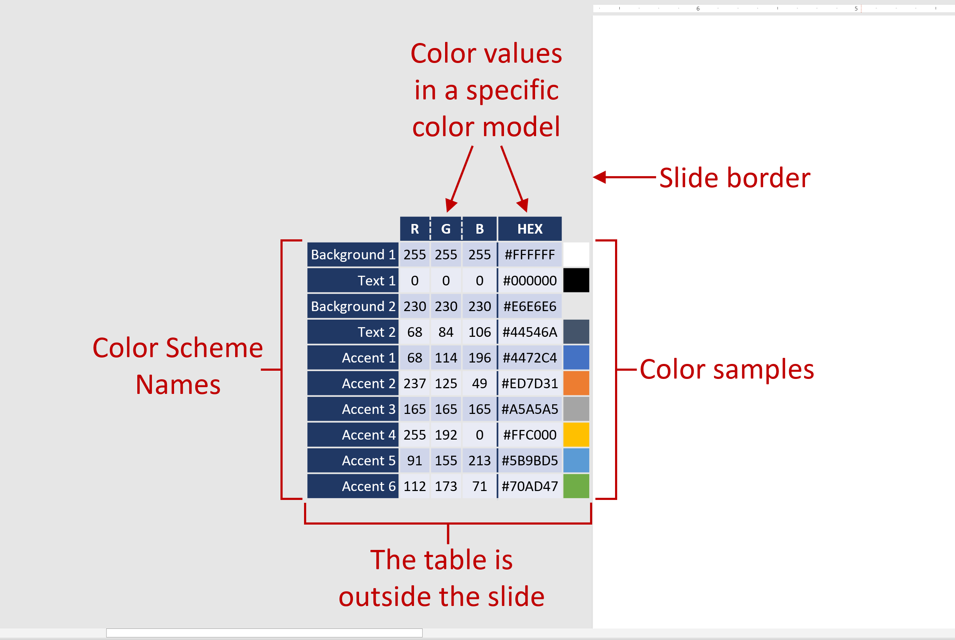
1.Outside of each slide in your presentation, on the left (or right, choose and report your choice to our editor), will be the color swatches and color values of your presentation's Color Scheme. We don't embed color swatches and color values in Slide Master, we embed them in each layout separately. This is to ensure that the color swatches and values do not disappear if background graphics are to be hidden.
2.When you create a new slide based on one of your presentation layouts, the color swatches and their values will be automatically created with the new slide. If you've added a new layout to your template, don't forget to copy the swatches and color values from the existing layout into it.
3.The color swatches and their meanings are outside the slide and they are not shown in the slide show on screen and are not printed when the slide is printed.
4.Thanks to this solution, the colors of the Color Scheme are always at your fingertips. You can visually see color values and you can directly assign colors to objects on a slide by copying colors from color swatches using the Eyedropper tool.
[/fusion_toggle][fusion_toggle title="What is NOT INCLUDED in the Creating a Color Scheme service?" open="no" class="" id=""]
All other services not listed in the
What is included in the Editing a Color Scheme service? this description.
[/fusion_toggle][fusion_toggle title="Options for Creating a Color Scheme Service and general description" open="no" class="" id=""]
The
Editing a Color Scheme service has three options:
1.Creating a Color Scheme based on your data
2.Creating a Color Scheme based on your description
3.Creating a Color Scheme from an Image
1.
Creating a Color Scheme based on your data
If you have already decided which colors should be in your new Color Scheme, then you can provide us with data to create a new Color Scheme in the form of
values of specific colors or the form of
color samples (visual representation of data).
Data as color values
- You can send us color values in any color model
- If you would like to create an additional Color Scheme, please let us know. Indicate the names of additional Color Schemes if there are several of them.
- If the color model in which the color values are specified can be used in PowerPoint, then we can immediately create the colors for the Color Scheme.
- If the color model in which the color values are specified cannot be used in PowerPoint, then we will first convert the color values into a color model that can be used in PowerPoint, and then we can create the colors for the Color Scheme.
- You can also specify the name of the new Color Scheme in the task (optional).
- It is very important that for each color value, you accurately and unambiguously indicate the location in the Color Scheme palette (Background 1, Text 1, Background 2, Text 2, Accent 1, Accent 2, Accent 3, Accent 4, Accent 5, and Accent 6)
- You may not provide values for all Color Scheme colors (10 colors, not counting 2 colors for links), but at least there must be accent color values (6 colors). The missing colors will be assigned by our editor.
- If you want to change 2 colors for links, then let the editor know.
If the color values are in a PowerPoint-compatible color palette, then we immediately enter the values and assign a new name to the Color Scheme (if you have specified one).
 Data in the form of color samples (visual data)
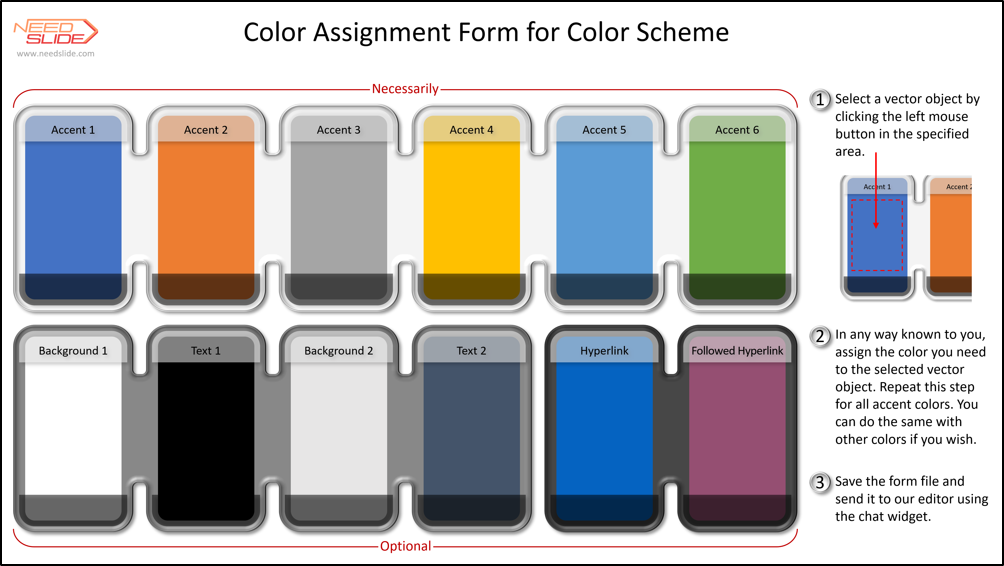
- You can send us a slide with color samples (objects) for the new Color Scheme in the form of vector and/or raster objects, including placing them on the slide without specifying color values.
- You can also specify the name of the new Color Scheme in the task (optional).
- It is very important that you accurately and unambiguously indicate for each color swatch (object) the location in the Color Scheme palette (Background 1, Text 1, Background 2, Text 2, Accent 1, Accent 2, Accent 3, Accent 4, Accent 5, and Accent 6)
- You may not provide samples (objects) of all the colors of the Color Scheme (10 colors, not counting 2 colors for references), but at least there must be objects showing accent colors (6 colors). The missing colors will be assigned by the editor.
- If you want to assign 2 colors for links, then let the editor know.
From the received color samples, we determine their values in one of the color palettes compatible with PowerPoint, and then enter the values and assign a new name to the Color Scheme (if you specified one).
We send you a presentation to confirm the completion of the assignment. If the execution is confirmed, the task is considered completed.
For your convenience, you can
download the form with vector objects and assign the color you need to each vector object. Send the finished form to our editor using the chat widget.
2.
Creating a Color Scheme based on your description
If you have an idea of what colors should be in your new Color Scheme, you can provide us with a text description of those colors or the Color Scheme as a whole. This text description may contain, for example, the following:
- You can make a general description, without specifying colors. For example: “Colors should be warm (or cold, poisonous, pastel, etc.), contrasting (or not contrasting), covering the entire color spectrum (or only shades of green or blue, etc.)” and other options.
- You can also indicate that the Color Scheme should be monochromatic (dual or triadic, etc.), indicate which and how many accent colors should be, etc. For example, business presentations or report presentations often use monochromatic Color Schemes with one or two accent colors.
- You can order a color scheme using the association method. Association method - you provide us with a set of several words (concepts) with which the new Color Scheme should be associated. As a rule, there should be no more than five words (concepts). For example, “businesslike”, “strict”, “cold”, “ascetic” and “solid”. Or, for example, “bright”, “fun”, “ambitious”, “bold” and “innovative”. Based on these words (concepts), we will select the most optimal set of colors associated with these words (concepts).
- You can make a description for each specific color in the Color Scheme.
- It is essential that for each color value, you accurately and unambiguously indicate the location in the Color Scheme palette (Background 1, Text 1, Background 2, Text 2, Accent 1, Accent 2, Accent 3, Accent 4, Accent 5, and Accent 6) in if you give a specific description of each color. If the description is of a general nature and does not imply a description of each color, then there is no need to indicate the location (purpose) of the colors.
- You can also refer to a visual reference (or image) as an example of a Color Scheme. For example: “The color scheme should be within the Coca-Cola Company color palette.” Or, for example: “The color scheme should consist of shades of the primary colors used in visualizing the protection of nature (ecology).” Or, for example: “The colors of the Color Scheme should be associated with the heavy industry (or, for example, agricultural production)”, etc.
- If you would like to create an additional Color Scheme, please let us know. Indicate the names of additional Color Schemes if there are several of them.
- You can also specify the name of the new Color Scheme in the task (optional).
We will send you a presentation with the new Color Scheme to confirm the completion of the task. If execution is confirmed, the task is considered completed.
3.
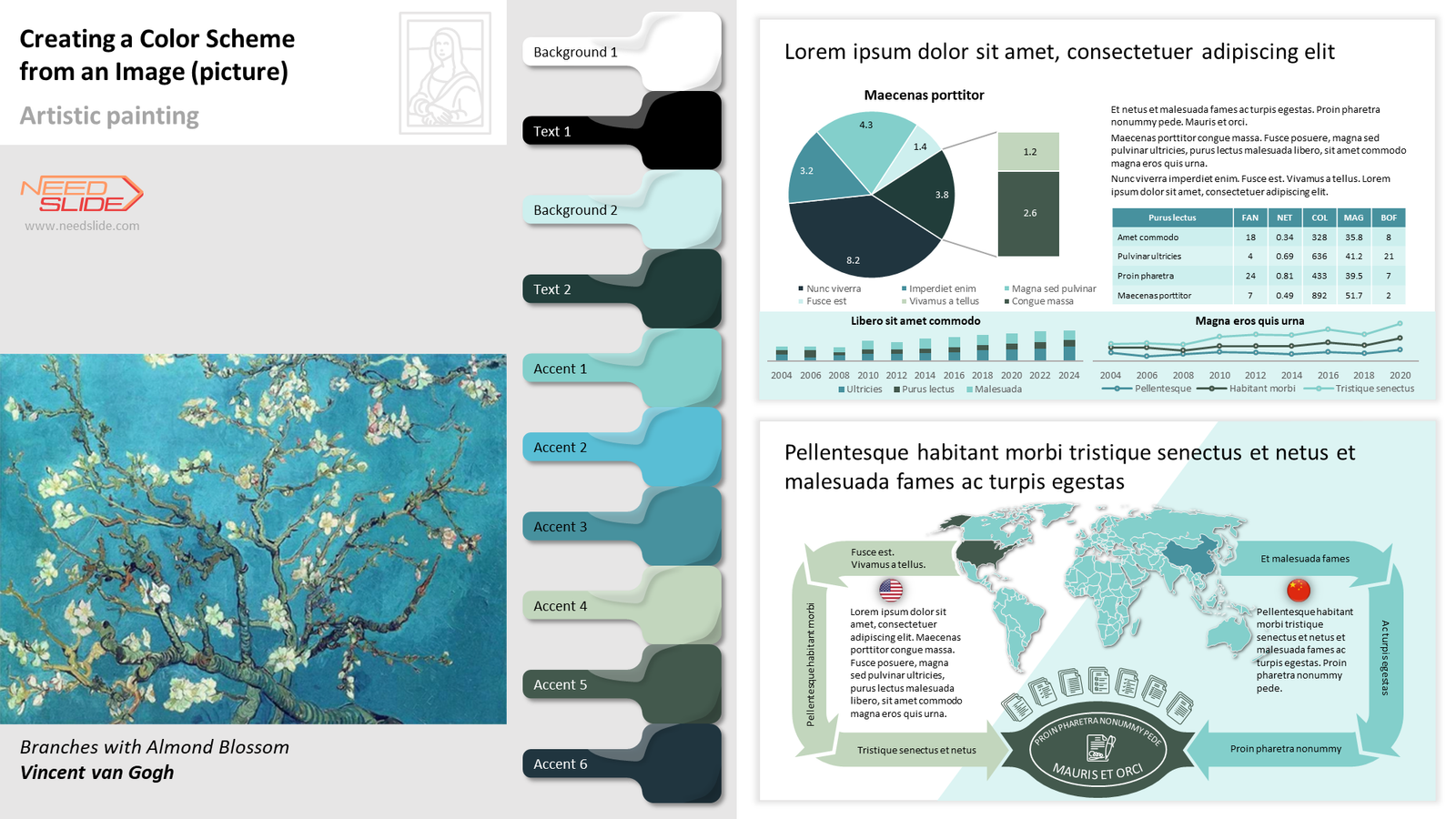
Creating a Color Scheme from an Image (picture)
We can create Color Schemes based on any image (picture). The image source can be:
- Artistic paintings
- Photos
- Movies, cartoons
- Coats of arms, flags, logos, and other symbols
- Artwork, samples of any design, etc.
In the case of creating a Color Scheme based on an image, the arrangement of colors in the Color Scheme palette (Background 1, Text 1, Background 2, Text 2, Accent 1, Accent 2, Accent 3, Accent 4, Accent 5, and Accent 6) is assigned by our designer -editor.
If you would like to create an additional Color Scheme, please let us know. Indicate the names of additional Color Schemes if there are several of them.
You can also specify the name of the new Color Scheme in the task (optional).
When creating a Color Scheme from an image, you may be sent more than one Color Scheme option for you to select and confirm completion of the job. If execution is confirmed, the task is considered completed.
Please note that the Color Scheme based on the image is not created automatically, as happens on many sites that provide such a service. After determining the primary colors, we adjust their values according to several parameters. For example, the ability to create dark gradients in PowerPoint. Or, for example, by increasing the contrast of similar colors. Or, for example, by rounding values for better memorability, etc.
You can look at examples of Color Schemes based on images in our Color Schemes catalog.
Some more examples of Image-Based Color Schemes:
[fusion_gallery layout="grid" picture_size="" columns="4" column_spacing="20" gallery_masonry_grid_ratio="" gallery_masonry_width_double="" hover_type="" lightbox="yes" lightbox_content="" bordersize="" bordercolor="" border_radius="" hide_on_mobile="small-visibility,medium-visibility,large-visibility" class="" id=""][fusion_gallery_image image="https://needslide.com/wp-content/uploads/2023/11/Create_Color_Scheme_from_Art_01.png" image_id="159364" link="" linktarget="_self" /][fusion_gallery_image image="https://needslide.com/wp-content/uploads/2023/11/Create_Color_Scheme_from_Art_02.png" image_id="159365" link="" linktarget="_self" /][fusion_gallery_image image="https://needslide.com/wp-content/uploads/2023/11/Create_Color_Scheme_from_Art_03.png" image_id="159366" link="" linktarget="_self" /][fusion_gallery_image image="https://needslide.com/wp-content/uploads/2023/11/Create_Color_Scheme_from_Art_04.png" image_id="159367" link="" linktarget="_self" /][fusion_gallery_image image="https://needslide.com/wp-content/uploads/2023/11/Create_Color_Scheme_from_Art_05.png" image_id="159368" link="" linktarget="_self" /][fusion_gallery_image image="https://needslide.com/wp-content/uploads/2023/11/Create_Color_Scheme_from_Art_06.png" image_id="159369" link="" linktarget="_self" /][fusion_gallery_image image="https://needslide.com/wp-content/uploads/2023/11/Create_Color_Scheme_from_Art_07.png" image_id="159370" link="" linktarget="_self" /][fusion_gallery_image image="https://needslide.com/wp-content/uploads/2023/11/Create_Color_Scheme_from_Photo_01.png" image_id="159385" link="" linktarget="_self" /][fusion_gallery_image image="https://needslide.com/wp-content/uploads/2023/11/Create_Color_Scheme_from_Photo_02.png" image_id="159386" link="" linktarget="_self" /][fusion_gallery_image image="https://needslide.com/wp-content/uploads/2023/11/Create_Color_Scheme_from_Photo_03.png" image_id="159387" link="" linktarget="_self" /][fusion_gallery_image image="https://needslide.com/wp-content/uploads/2023/11/Create_Color_Scheme_from_Photo_04.png" image_id="159388" link="" linktarget="_self" /][fusion_gallery_image image="https://needslide.com/wp-content/uploads/2023/11/Create_Color_Scheme_from_Photo_05.png" image_id="159389" link="" linktarget="_self" /][fusion_gallery_image image="https://needslide.com/wp-content/uploads/2023/11/Create_Color_Scheme_from_Photo_06.png" image_id="159390" link="" linktarget="_self" /][fusion_gallery_image image="https://needslide.com/wp-content/uploads/2023/11/Create_Color_Scheme_from_Photo_07.png" image_id="159391" link="" linktarget="_self" /][fusion_gallery_image image="https://needslide.com/wp-content/uploads/2023/11/Create_Color_Scheme_from_Movie_01.png" image_id="159378" link="" linktarget="_self" /][fusion_gallery_image image="https://needslide.com/wp-content/uploads/2023/11/Create_Color_Scheme_from_Movie_02.png" image_id="159379" link="" linktarget="_self" /][fusion_gallery_image image="https://needslide.com/wp-content/uploads/2023/11/Create_Color_Scheme_from_Movie_03.png" image_id="159380" link="" linktarget="_self" /][fusion_gallery_image image="https://needslide.com/wp-content/uploads/2023/11/Create_Color_Scheme_from_Movie_04.png" image_id="159381" link="" linktarget="_self" /][fusion_gallery_image image="https://needslide.com/wp-content/uploads/2023/11/Create_Color_Scheme_from_Movie_05.png" image_id="159382" link="" linktarget="_self" /][fusion_gallery_image image="https://needslide.com/wp-content/uploads/2023/11/Create_Color_Scheme_from_Movie_06.png" image_id="159383" link="" linktarget="_self" /][fusion_gallery_image image="https://needslide.com/wp-content/uploads/2023/11/Create_Color_Scheme_from_Movie_07.png" image_id="159384" link="" linktarget="_self" /][fusion_gallery_image image="https://needslide.com/wp-content/uploads/2023/11/Create_Color_Scheme_from_Design_01.png" image_id="159371" link="" linktarget="_self" /][fusion_gallery_image image="https://needslide.com/wp-content/uploads/2023/11/Create_Color_Scheme_from_Design_02.png" image_id="159372" link="" linktarget="_self" /][fusion_gallery_image image="https://needslide.com/wp-content/uploads/2023/11/Create_Color_Scheme_from_Design_03.png" image_id="159373" link="" linktarget="_self" /][fusion_gallery_image image="https://needslide.com/wp-content/uploads/2023/11/Create_Color_Scheme_from_Design_04.png" image_id="159374" link="" linktarget="_self" /][fusion_gallery_image image="https://needslide.com/wp-content/uploads/2023/11/Create_Color_Scheme_from_Design_05.png" image_id="159375" link="" linktarget="_self" /][fusion_gallery_image image="https://needslide.com/wp-content/uploads/2023/11/Create_Color_Scheme_from_Design_06.png" image_id="159376" link="" linktarget="_self" /][fusion_gallery_image image="https://needslide.com/wp-content/uploads/2023/11/Create_Color_Scheme_from_Design_07.png" image_id="159377" link="" linktarget="_self" /][/fusion_gallery]
[/fusion_toggle][fusion_toggle title="Additional free service" open="no" class="" id=""]
In addition to directly creating a new Color Scheme, you can request a free service: embedding your new Color Scheme into your presentation template as a table outside the slide containing the color values and color swatches of your new Color Scheme.
You will always have at hand all the primary colors of your color scheme and the colors values will always be in front of you. You can assign primary colors to objects on a slide using the eyedropper tool. In this case, neither when displayed on the screen, nor when printing your slides, this table will not be visible, because it is outside the slide.
To include such a table in your presentation template, inform our editor using the chat widget. This service is free.
The table might look like this:

[/fusion_toggle][fusion_toggle title="What will you get as a result?" open="no" class="" id=""]

[/fusion_toggle][fusion_toggle title="How to order the Editing a Color Scheme service" open="no" class="" id=""]
Order the
Creating a Color Scheme service using the chat widget:
1.Contact our editor using the chat widget
2.Describe in detail all the conditions of your order, namely:
- In the chat widget, specify the service (or several services) that you want to order. In this case, it's the Creating a Color Scheme service. Previously, you can see the estimated cost of the Creating a Color Scheme service on the page of this service. The cost depends on the option you choose for this service and the desired execution time.
- In the chat widget, specify the desired date for the execution of your order
- In the chat widget, describe your conditions and requirements regarding your order
- Upload all required files using the chat widget
3.Using the chat widget, agree on all the terms of your order with our editor. If required, the editor will ask you clarifying questions. If you are not sure about the correct choice of service, the editor will tell you the most optimal and inexpensive solution. The term of execution and the cost of the order can be adjusted depending on the conditions of the assignment and the materials (files) provided. In addition, the editor will inform you about all the discounts valid at the time of the order. The editor has the right to provide an individual discount.
4.After agreeing on all the parameters of the task, including the total cost of your order, taking into account all existing discounts, go to the
page for entering the agreed price of your order. Enter the order amount that you agreed with the editor. Add the service to your cart.
5.In your cart, you can enter a brief description of your task and you can additionally upload the necessary files if their size is more than 50 MB and less than 100 MB.
[/fusion_toggle][fusion_toggle title="Deadline for your order" open="no" class="" id=""]
On the
Creating a Color Scheme page, by default, there are three options for the lead time: 6 hours, 12 hours, and 24 hours. The cost of the service depends on the option chosen. The longer the term of the order, the lower the cost of the service.
You can choose one of three options. During the coordination of your order with the editor in the chat widget, you will provide one of the three options for the deadline for the order. Or you can request a different deadline.
For example, instead of 6 hours, you can request 3 hours. If the editor considers such a deadline to be realistic (taking into account the complexity and laboriousness of your assignment and his current workload), he will confirm your request or offer another deadline.
Or, for example, you need a five-day due date. In this case, the editor may agree with your proposal or suggest a different deadline.
If the order execution time is more than 6 hours, then it includes at least one iteration.
If the deadline for the execution of the order is less than 6 hours, then the cost of the order can be increased in agreement with the editor.
While working on your order, the deadline may be changed with your consent.
The quality of work is highly dependent on the deadline. The editor always tries to strike a balance between deadlines and the quality of work. Please request a lead time with sufficient margin to obtain higher quality and increase the likelihood of additional iterations.
Our editors try to fulfill your order as soon as possible and, if possible, without sacrificing quality. Therefore, there is often an early execution of the task.
[/fusion_toggle][fusion_toggle title="Iterations (draft file)" open="no" class="" id=""]
The number of iterations is not formally limited. But the number of iterations strongly depends on the execution time.
You will receive the first draft file (the first iteration) no later than 4 hours before the deadline. If the execution time is less than 6 hours, then there may not be an iteration with a draft file.
The longer the execution time, the higher the probability of additional iterations.
After receiving the draft file, you should carefully review it and use the chat widget to inform the editor of all your comments and suggestions, if any. The sooner you do this, the better.
If you have not provided the editor with any comments or suggestions before the deadline, then you have no comments or suggestions by default.
All comments and suggestions should be within the scope of the current task. The editor will agree with you your comments and suggestions and, accordingly, edit the draft of your file and send it to you for further approval.
If comments and suggestions go beyond the scope of the current task, then you can agree with the editor on a new task.
Iterations can be repeated until you are completely satisfied or until the deadline expires.
[/fusion_toggle][fusion_toggle title="Payment for your order" open="no" class="" id=""]
Zero Risk: You only pay if you are satisfied.
You can pay AFTER the completion of work on your order. And only if you are satisfied. If you are not satisfied, then YOU PAY NOTHING.
After agreeing on all the conditions and costs of your task with the editor, go to the
page for entering the agreed price of your order.
Being on the
page for entering the agreed price of your order:
1.Enter the total cost of the order
2.Add an order to the cart - click the
ADD TO CART button
Go to your cart to make sure your order has been added to your cart.
While in the shopping cart, you can:
1.Enter a brief description of your assignment (optional)
2.Upload file(s) up to 100 Mb to our email inbox (optional)
3.Make payment immediately or AFTER THE COMPLETION OF WORK on your order - at your choice:
- If you want to pay immediately, then click the PROCEED TO CHECKOUT button. Then follow the instructions.
- If you want to pay after the work is completed, you can leave the basket and return to it after the work is completed. After completing your order and if you are satisfied, return to your cart and click the PROCEED TO CHECKOUT button. Then follow the instructions.
Please make payment within a reasonable time. We consider a reasonable period of 3 days from the moment we sent you the final file(s) with your task. If you have not made payment within 7 days, we will assume that you have refused to pay for our work.
[/fusion_toggle][fusion_toggle title="Mutual right to subjective evaluation" open="no" class="" id=""]
You can pay AFTER the completion of work on your order. And only if you are satisfied. If you are not satisfied, then you pay nothing.
After you have sent your order to the basket, it is not necessary to immediately pay for it. Of course, you can do this, especially if you regularly use our services and are already fully confident in the quality of our work. But you can make payment after the order is completed.
You may be surprised by such a unique opportunity. But three factors give us confidence in providing you with such an exclusive opportunity:
We are confident in the quality of our work. We have many years of experience in editing and creating slides.
We are convinced that the vast majority of people are honest and adequate people. And our users are no exception. In addition, this payment procedure has been tested by many years of practice.
Dishonest or inadequate people still exist. Therefore, we have several rules that allow us to minimize losses from the actions of dishonest or inadequate people.
You only pay if you are satisfied. And you have the right to a subjective assessment. What does this mean? In addition to the objective assessment of our work, there is also a large proportion of subjective assessment. An objective appraisal includes, for example, an assessment of work done or not done, which is listed in your assignment description. Subjective assessment includes, for example, an aesthetic assessment of our work - like / dislike. As a rule, within the framework of your assignment description, there are a lot of options for how we can complete your assignment from an aesthetic, artistic point of view. Much depends not only on the accuracy of the description of your task but also on the experience and aesthetic view of the editor. Therefore, you have every right to subjectively evaluate our work. And only after this assessment decides on payment.
We try to
eliminate the risk for you:
1.Paying for work before or after the work is done is completely your choice.
2.You have every right to refuse payment for the work performed. You can justify your refusal (preferably). But you also have the right to refuse payment for work performed without any explanation.
3.No partial upfront payments. The work is paid in full before or after the work is done - at your choice.
You have the right to subjectively evaluate our work. But in this case, we reserve the right to subjectively evaluate your decision to pay for the completed task or not. If we believe that the Customer is wrong in his assessment of our work and/or abuses his right to subjective assessment and the right not to pay for the work performed, then we reserve the right to refuse further work with such a Customer. To minimize risks, we try to adhere to the following rules:
1.If the Customer, without good reason, refuses to pay for the work performed, then we terminate cooperation with such a Customer. For us to assess the validity of the refusal to pay for the work, the Customer may tell us the reasons for his refusal. If the Customer does not explain in any way his refusal to pay for the work, then we will consider that the Customer refused to pay without good reason.
2.If the Customer refuses to pay for the work performed 3 times in a row, then we terminate cooperation with such a Customer, because the likelihood of abuse becomes very high.
3.If the Customer contacts us for the first time, then the total amount of the order should not exceed $300. If the total amount of the first order exceeds $300, then, in agreement with the Customer, we will divide the order into two or more parts and execute them sequentially. Accordingly, payment for these parts occurs as they are completed.
4.If the total amount of the order exceeds $1,000, then, in agreement with the Customer, we will divide the order into two or more parts and execute them sequentially. Accordingly, payment for these parts occurs as they are completed. For regular and verified Customers, we may not apply this rule.
We try to create long-term, reliable, and honest relationships with our customers. Trust is an important element of these relationships. Therefore, we fully trust your subjective assessment. And, at the same time, we try to reduce our risks to a minimum. This is justified because you are not risking anything.
[/fusion_toggle][fusion_toggle title="Uploadable file formats and their size" open="no" class="" id=""]
The downloads are needed to represent the Color Scheme color swatches. These can be color values presented in any format (for example, PPT, PPTX, DOC, DOCX, XLS, XLSX, PDF) or color samples presented as objects on a slide (PPT, PPTX), on a page (DOC, DOCX), in table (XLS, XLSX), etc. It can also be separate image files for each color (eg PDF, JPG, PNG, GIF, BMP, TIF, etc.). Or it can be a single image (photo) based on which you need to get the colors (create a palette) of the Color Scheme (for example, PDF, JPG, PNG, GIF, BMP, TIF, SVG, etc.)
Files can be uploaded using the chat widget or using the order form (in the shopping cart, to our email address) during the ordering process.
Uploading the following file types is not supported in the chat widget: HTML, HTM, EXE, PKG, DMG, DEB, SVG, ZIP, MSI, DLL, DMG, BAT, SH, and PS1. Uploading other file types is supported in the chat widget. For example, you can upload the following popular file types: PPT, PPTX, DOC, DOCX, XLS, XLSX, PDF, JPG, PNG, GIF, BMP, TIF, etc.
Uploading the following file types is not supported in the order form (in the shopping cart, in a letter to our email address): HTML, HTM, EXE, PKG, DMG, DEB, MSI, DLL, DMG, BAT, SH, and PS1. Please note: SVG and ZIP - these types of files you can upload via the order form (in the shopping cart, to our email address). Uploading other types of files is supported in the order form (in the shopping cart, to our email address). For example, you can upload the following popular file types: PPT, PPTX, DOC, DOCX, XLS, XLSX, PDF, JPG, PNG, GIF, BMP, TIF, SVG, ZIP, etc.
The maximum file size must not exceed 50 MB when sending files via the chat widget.
When sending files via the order form (in the shopping cart, to our e-mail address), the maximum file size must not exceed 100 MB.
If you need to upload a file larger than 100 MB, please, contact us using the chat widget, and we will try to solve this problem.
Each file is checked for threats.
[/fusion_toggle][fusion_toggle title="Confidentiality" open="no" class="" id=""]
We guarantee complete confidentiality. This means the following:
1.We do not share your data in any form with any third parties.
2.We do not share in any form the materials provided for the completion of your order with any third parties.
3.We do not share in any form the final and draft file (s) of your task with any third parties
4.All materials that you provided to us as part of your assignment, and the final and draft file (s) of your assignment, are stored with us for 30 days and then deleted without the possibility of recovery.
[/fusion_toggle][fusion_toggle title="Refusal to perform the task" open="no" class="" id=""]
We reserve the right to refuse to perform the task if the task contains materials that are ethically unacceptable to us (discrimination on racial, ethnic, gender, religious, and other grounds, etc.). In this case, we will fully refund you the amount of your payment for this task.
[/fusion_toggle][/fusion_accordion][/fusion_builder_column][/fusion_builder_row][/fusion_builder_container]

 2611
2611
 S-003-0006
 S-003-0013
 S-003-0015
 S-003-0014
 S-003-0016
 S-003-0017
 S-003-0011
 S-003-0012
 S-003-0008
 S-003-0007
 S-003-0010
 S-003-0009
 S-003-0001

 CPD-3
CPD-3
 CDP-1
CDP-1

 CPD-2
CPD-2

 2223
2223

 2226
2226
 2229
2229
